Creating 3D Text Effects in Photoshop: A Guide to Designing Eye-Catching Visuals
In the world of graphic design, visual appeal is everything. One of the most effective ways to make your designs stand out is by incorporating 3D text effects. Whether you're a beginner or an experienced designer, understanding how to create 3D text in Photoshop can open up a whole new realm of creative possibilities. This article will guide you through the process of designing 3D text effects, explaining their purpose, significance, and practical applications.
What Are 3D Text Effects?
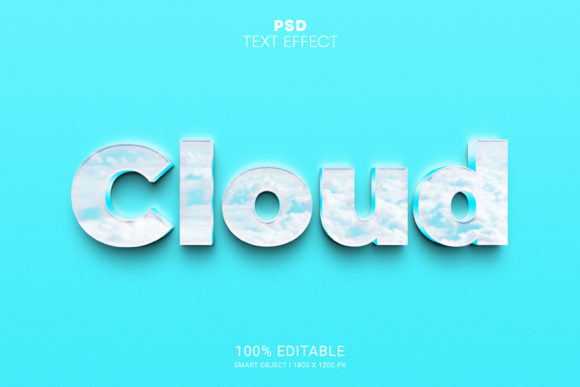
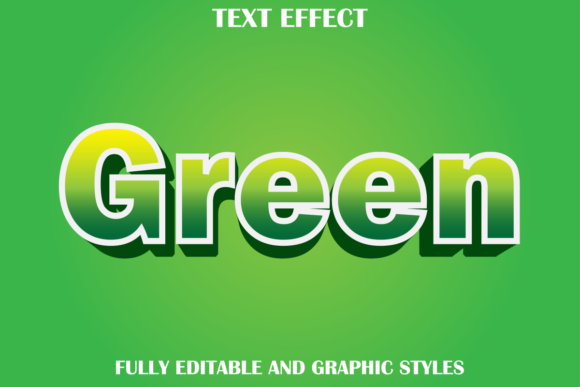
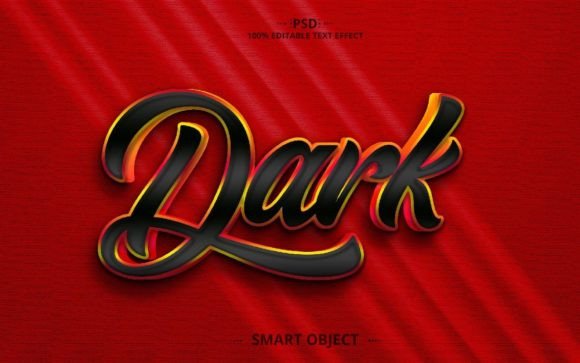
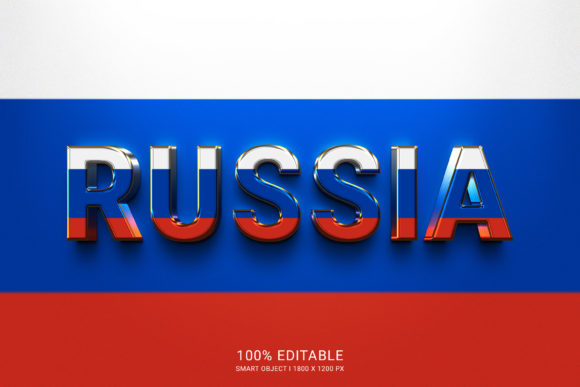
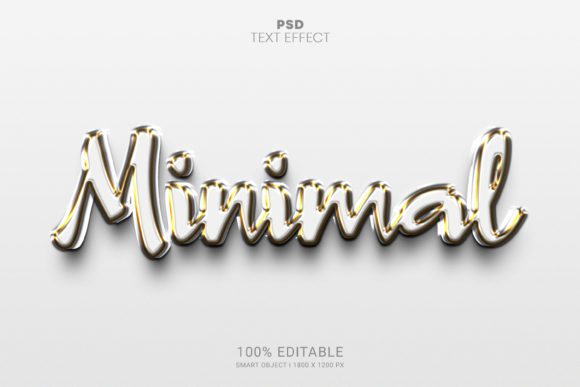
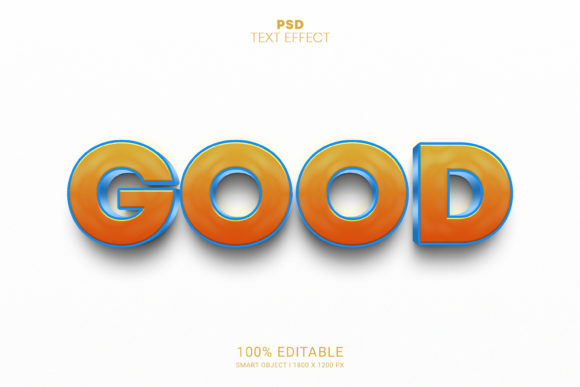
3D text effects are digital designs that give text a three-dimensional appearance. Unlike traditional 2D text, which lies flat on a surface, 3D text appears to have depth, volume, and texture. This effect is commonly used in logos, advertisements, web design, and other visual media to add visual interest and make content more engaging.
Creating 3D text in Photoshop involves using layer styles, blending modes, and sometimes third-party plugins or tools. The result is a text element that looks as though it's popping off the screen, adding a sense of realism and dimensionality to your design.
Why 3D Text Effects Matter in Modern Design
With the rise of digital media and online content, the demand for visually striking designs has never been higher. 3D text effects play a crucial role in this landscape because they help capture attention and convey messages more effectively. Here are some reasons why 3D text effects are significant:
- Enhanced Visual Appeal: 3D text adds depth and dimension, making your designs more dynamic and eye-catching.
- Brand Identity: Many brands use 3D text in their logos and marketing materials to create a unique and memorable visual identity.
- Improved User Engagement: In web and app design, 3D text can guide users' attention and improve the overall user experience.
- Flexibility and Customization: With the right tools, you can customize the look of 3D text to fit any design theme or project.
Whether you're working on a personal project, a business website, or a marketing campaign, 3D text effects can elevate your work and make it stand out from the crowd.
How to Create 3D Text in Photoshop
If you're new to Photoshop, don't worry—creating 3D text is easier than you might think. Here's a step-by-step guide to help you get started:
- Create a New Document: Open Photoshop and create a new document with the desired dimensions. For example, you might choose a standard size like 1920x1080 pixels for a web banner.
- Add Text: Select the Type Tool (T) and click on the canvas to add your text. Choose a font that complements your design, such as a bold sans-serif or a decorative script.
- Convert to 3D: Right-click on the text layer and select "Convert to 3D." This will transform your 2D text into a 3D object.
- Adjust 3D Settings: Use the 3D panel to adjust the depth, bevel, and material properties of your text. You can experiment with different settings to achieve the desired look.
- Apply Lighting and Shadows: Add lighting effects and shadows to enhance the 3D appearance. You can use the Light panel to adjust the intensity and direction of the light source.
- Export Your Design: Once you're satisfied with your 3D text, export it as a high-resolution image file (e.g., PNG or JPEG) for use in your project.
By following these steps, you can create stunning 3D text effects that add depth and dimension to your designs.
Advanced Techniques for 3D Text Effects
While the basic method outlined above works well for simple 3D text, there are more advanced techniques that can take your designs to the next level. Some of these include:
- Using Layer Styles: Photoshop's layer styles allow you to add effects like drop shadows, gradients, and outer glows to your 3D text. These effects can enhance the realism and visual impact of your design.
- Adding Texture and Materials: You can apply textures or materials to your 3D text to give it a more realistic look. For example, you might use a metallic texture for a high-end logo or a wood grain for a rustic design.
- Combining with Other Elements: 3D text can be combined with images, shapes, and other design elements to create complex compositions. This approach is often used in advertising and editorial design.
- Using Third-Party Plugins: There are several Photoshop plugins available that can simplify the 3D text creation process. Tools like Adobe Dimension or Flourish offer additional features and flexibility.
These advanced techniques can help you achieve more sophisticated and professional results, especially when working on complex projects or client work.
Common Misconceptions About 3D Text Effects
Despite their popularity, there are a few common misconceptions about 3D text effects that are worth addressing:
- 3D Text Is Only for Professional Designers: While 3D text can be complex, many tools and tutorials make it accessible to beginners. With practice and experimentation, anyone can create impressive 3D text effects.
- 3D Text Is Too Time-Consuming: While creating 3D text may require some time and effort, the results are often worth it. Plus, once you understand the process, it becomes faster and more efficient.
- 3D Text Is Not Suitable for All Projects: While 3D text may not be appropriate for every design, it can still be used strategically. For example, it works well for headlines, logos, and promotional materials but may not be ideal for body text in a magazine layout.
Understanding these misconceptions can help you make informed decisions about when and how to use 3D text in your designs.
Real-World Applications of 3D Text Effects
3D text effects are used in a wide range of industries and contexts. Here are a few examples of how they are applied in real life:
- Marketing and Advertising: Brands often use 3D text in their ads to grab attention and create a memorable impression. For instance, a tech company might use 3D text in a product launch poster to highlight key features.
- Web and App Design: Web designers incorporate 3D text to enhance user interfaces and make websites more visually appealing. This is particularly useful for call-to-action buttons and headings.
- Print Media: Magazines, brochures, and posters frequently use 3D text to add depth and interest to their layouts. This can help draw readers' eyes to important information.
- Personal Projects: Artists and hobbyists use 3D text to create unique artwork, social media graphics, and digital illustrations. It's a great way to express creativity and experiment with design.
As you can see, 3D text effects have a wide range of applications and can be adapted to suit various needs and goals.
Conclusion
Creating 3D text effects in Photoshop is a valuable skill that can enhance your design work and make your visuals more engaging. Whether you're a beginner or an experienced designer, understanding the basics of 3D text creation can open up new creative opportunities. By experimenting with different techniques, applying realistic textures, and combining 3D text with other design elements, you can produce stunning visuals that stand out in today's competitive digital landscape.